tiistai 2. huhtikuuta 2019

Reworking SMD components

In all electronics projects I have done, there has always been few errors. Component value errors are easy to solve by just changing the component, but wrong components or wrong component pinouts are more difficult.

I think I've never managed to do any project where there wasn't any issues with component pinouts. Either some pins are swapped by accident, or I need to use other component (due to design error) which has different pinout.

In this post I will show how I work around wrong pinouts in SMD components.

Backgroud

Some time ago I designed a class D (subwoofer) amplifier . In the circuit I used a high and low side driver to drive the output H-bridge transistors. I selected ADP3120A from OnSemi for the driver, since I thought it would work fine with the 24 V power supply I was going to use.

However it turned out that the voltage rating of the component was not enough, and I needed to change the component. I could not find any pin-to-pin compatible replacement with higher voltage, so I decided to use a IR2104 from Infineon, which is logically compatible, and work my way around the pin differences.

The plan

The pinout for each chip is shown below. As can be seen, only 3 pins are directly compatible, marked with red squares.

Comparison of component pinouts
The plan how to fix the pin incompatibility is to solder the new chip in place with those 3 pins. The other ones will be lifted up with tweezers and then soldered to wherever the pins would go with jumper wires.

To ease the process, I checked the schematic and selected the components that I will solder the jumper wires to. In the following figure different colors indicate where the connection will be made. The blue numbers are the pinout of the new component, while the red numbers (originals) are from the old chip.

Planning of jumper connections in schematic
After this, I checked the layout drawing and marked the correct solder pads there also, with same colors.
Layout drawing with connections marked

After this step, it is quite straightforward to do the soldering.

Implementation

First, before soldering anything, I carefully bent up the pins that were not meant to be soldered down. Then using the 3 pins that were compatible between both chips, I soldered the chip to board.

After the chip was down, I put small pieces of polyimide tape under the lifted pins to prevent accidental solder bridges.

Pins lifted and small pieces of tape added under them

Then I measured pieces of thin single-strang wire-wrapping wire from each pin to the correct pads. I first soldered the pieces, one at a time, to the other pad (resistor pad, diode pad or similar larger pad) first, and then carefully routed the wire to the component pin. Adding a very tiny amount of solder, I then soldered the free end to the lifted component pin.

First jumper wire soldered to pad and pin
After the first jumper wire, I continued with other wires. Always measuring the length, soldering first to the other component, then carefully bending the wire into place and then soldering to component pin.

It is better to solder the wires first to a larger component because then the wire can be bent more safely without risk of breaking the component pin or the tiny solder connection between the pin and the wire.

Also with the wire I used, I found it easiest to not try to strip the wire with any pliers, but instead touch the end of the wire with hot soldering iron. This caused the insulator to shrink and expose just enough of the wire to allow soldering it.

It took some time to solder all the connections, but here is picture of the finished rework.
Finished rework

Maybe not the best soldering job I've done, but it does the trick. A good idea is to add some hot glue or tape to fix the wires into place then.

Happy soldering!

sunnuntai 6. tammikuuta 2019

STM32 remote debugging with Raspberry PI Zero W, OpenOCD and Eclipse

I'm doing an electronics project which uses a STM32F103RF microprocessor, and I needed a way to flash my own firmware into the micro and also a way to debug it. I don't have any special programmer for the micro, nor any generic JTAG adapters or such, but luckily I read online (e.g. this guide or another guide) that it should be possible to use a Raspberry PI as a JTAG/SWD (single wire debug) interface for fashing and debugging the STM32 micros.

However, about all the guides seemed to use the larger Raspberry Pis, like A or 3, and I had only the wireless Raspberry Pi zero W model. The guides didn't work out directly, but luckily I got it to work in the end and here I describe how.

Another plus side is that the zero W uses wifi connection, so I got wireless debugging over wifi, which is great since my project is mains powered, and now I can flash and debug safely without risk of electic shock!

STM32 connection

I designed in a very simple debug connection to the project. The SWD pins are routed directly from the processor to the debug connector, together with the reset pin. Following figures show the schematic I used for the debug connection.

SWD connector with series resistors for ESD and noise protection

SWD data and clock pins directly go to the processor

Reset pin is also directly connected to the processor

Raspberry Pi zero W connection

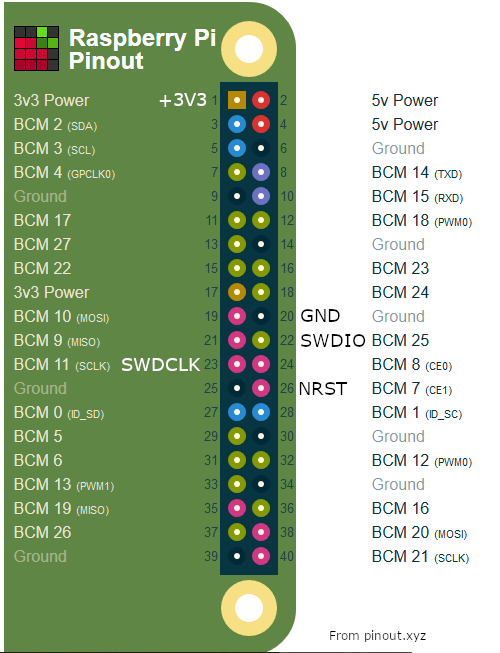
The guides, like the ones I linked in the beginning, use RPi pins (BCM) 18, 24 and 25 and a "native" OpenOCD configuration. I couldn't get that to work so I selected following pins that are used with a "sysfsgpio" configuration:
Raspberry Pi zero W pins used for SWD
To connected the boards together, I used some jumper wires, like shown in next figure.
Debug connection between the boards

OpenOCD configuration

The OpenOCD configuration was the most critical part! I had plenty of issues before I understood how to make the reset configuration. In the beginning, the flashing worked fine but the start address after reboot was wrong so the micro did start only randomly.

I needed to change the sysfsgpio-raspberrypi.cfg located at  /usr/share/openocd/scripts/interface/ to following:

#
# Config for using RaspberryPi's expansion header
#
# This is best used with a fast enough buffer but also
# is suitable for direct connection if the target voltage
# matches RPi's 3.3V
#
# Do not forget the GND connection, pin 6 of the expansion header.
#

interface sysfsgpio

# Each of the JTAG lines need a gpio number set: tck tms tdi tdo
# Header pin numbers: 23 22 19 21
sysfsgpio_jtag_nums 11 25 10 9

# Each of the SWD lines need a gpio number set: swclk swdio
# Header pin numbers: 23 22
sysfsgpio_swd_nums 11 25

# If you define trst or srst, use appropriate reset_config
# Header pin numbers: TRST - 26, SRST - 18

# sysfsgpio_trst_num 7
# reset_config trst_only

# sysfsgpio_srst_num 24
sysfsgpio_srst_num 7
reset_config srst_only srst_push_pull

# or if you have both connected,
# reset_config trst_and_srst srst_push_pull

The most important part was the sysfsgpio_srst_num 7 and reset_config srst_only srst_push_pull. With trst the reboot did not work properly. Only after I figured the correct reset config, did the micro start to reboot at the correct address at the beginning of flash memory!

Other thing was to do an OpenOCD config file openocd.cfg:
source [find interface/sysfsgpio-raspberrypi.cfg]
transport select swd
set WORKAREASIZE 0x2000
source [find target/stm32f0x.cfg]
reset_config srst_only srst_nogate
adapter_nsrst_delay 100
adapter_nsrst_assert_width 100
bindto 0.0.0.0
init
targets
reset halt
The first line tells to use the correct, already modified, interface configu. Then there is the source line telling the type of processor. And also in this config I have some reset config flags.

Also important line is the bind 0.0.0.0 which tells OpenOCD to allow connections from external interfaces (wifi). Otherwise only localhost is allowed, and the debugging over wifi won't work.

The OpenOCD must be started in the same directory where the openocd.cfg is located, with sudo opencd command.

Eclipse configuration

I won't go into details on how to configure Eclipse to be used with STM32, it was quite a pain in the ass to get to work. There are multiple guides on the 'net on the topic, one should follow those.

To get the OpenOCD debugger to work, I think I followed this guide. Most important part is to uncheck the "Start OpenOCD locally" setting, and fill in correct IP address and port of the RPi in the debug configuration.

Following figure shows the configuration I have.
Parameters for remote OpenOCD connection
Finally, here is a picture of the project I'm doing, running on mains power and the RPi enclosed inside the eclosure (top left corner). I can flash the firmware and debug all parameters etc. without any risk of electric shock!

Remote debugging the mains powered equipment

tiistai 4. joulukuuta 2018

Torque PIDs for Toyota Auris Hybrid

I have a 2017 model Toyota Auris Hybrid, and I like to monitor its status using an OBD-II bluetooth adapter and Torque Pro app on my Android phone. By default, the app only comes with a set of standard variables (PIDs, Parameter IDs), and to get any interesting data out of the car, some custom PIDs are needed.

Luckily, the Auris is quite close to Prius, and some guys at PriusChat forum have gathered a very comprehensive list of PIDs for Prius.

However, probably due to small differences in the cars quite large amount of those PIDs are not working and it is rather difficult to use since I never know beforehand which PID will work and which not. For this reason, I checked all the PIDs whether they work with Auris or not, and removed the non-working ones. I used the Prius list with latest change done 13.7.2014 as a base.

Here is the result csv. It has 212 items which are prefixed with "Auris-" to easily distinquish them from the standard PIDs. I think there might still be 1 or 2 that do not work, and IIRC I added battery power calculation that does not exist as a PID. With this list, it is very simple to do dashboards even without a connection to the car. Below is an example of a dashboard I made for testing.

It shows some basic information like GPS speed, battery state-of-charge and current, and ICE (gasoline engine) rotation speed. The graph shows the battery power limits together with the actual charge/discharge power (it works only with transparent theme, 3 graphs on top of each other).

The meters show coolant, catalysator, and battery temperatures.

On the bottom line there is indicators for ICE warm up request (if it is yes, the ICE will run until warm before the car can switch to EV mode automatically) and cruise control status with its setpoint (which is not normally shown in the dashboard, which is weird).

I've found the above information to be pretty good for normal driving. Other screens can be made for debuggin e.g. the battery condition. I also think about doing counters for energy regenerated and percent/distance driven in EV mode etc. Maybe I'll update the PID file if I get around to implement those.

Happy driving!


sunnuntai 27. toukokuuta 2018

Receiving Aalto-1 satellite with RTL-SDR

I recently bought an RTL-SDR dongle mostly to try to receive weather satellitse (see e.g. this guide for guide on how, and this nice software for more info), but also to experiment with receiving other kinds of radio communications.

While browsing the net for information about different satellites, antennas, etc I ended up to a Finnish page about receiving Aalto-1 satellite. The satellite is built by students at a Finnish Aalto university, hence the name. The satellite information is freely available and some parts of the communication is easy to receive.

The easiest part, the only part I got, is a morse code of the satellite callsign, AALTO1. It is transmitted every 3 minutes at 437.220 MHz frequency and it lasts for 6 seconds. The modulation is constant wave.

I used a simple V-dipole antenna which I mainly use for weather satellites at 137...138 MHz. I pointed it to south (since from there the satellite crosses the sky at my location) with as clear as possible view to sky. The antenna is most likely not optimal, but seemed to work somehow.


I used gpredict to see when the Aalto-1 satellite would cross the sky, but it is possible to track it online, too. When the time was, I tuned the RTL-SDR dongle to 437.220 MHz, and set it to record the baseband. About when the satellite was directly above, I got the above signal! (The vertical dashed line in the middle). Success! Looks very similar to the picture in the other blog, but not as clear due to lower signal level.

A bit later I also received next beacon with better signal quality, but unfortunately I was not recording at this time. Picture of the second beacon (beginning was already off the screen):
After recording was done, I reloaded the IQ wav file back to RTL-SDR using the FilePlayer plugin and searched for the signal. After finding it, I set CW modulation with 500 Hz bandwidth and centered the tuner to the signal. The signal frequency was a bit off, partly due to the low quality oscillator of the RTL-SDR dongle, partly due to doppler effect as the satellite flies so fast over the sky. I tuned about to the center of the beacon.

I played the demodulated signal to Audacity via a virtual audio cable. The signal indeed sounds like morse code an parsing the first 5 characters, they are .- .- .-.. - ---, which stands for AALTO. The last character in this recording is bad, but from the screenshot of second beacon, it can be barely seen that it is .---- which stands for 1.

Here is a link to the CW demodulated audio signal from the first recording. The doppler shift can clearly be heard in the signal!

sunnuntai 31. joulukuuta 2017

Rooting LG Leon with Android 6.0

Disclaimer: This post is for information purposes only. It is not a guide but a log of what I did to root the phone. Rooting may result in loss of data or brick your device, everything is done at your own risk. I'm not a developer, I do not know the details of how rooting works, and I cannot help if something goes wrong during the process.

Introduction

I have a LG Leon phone, which is a low-end Android phone. It has limited storage space and also other limitations, like not being able to store applications on SD card. It constantly runs out of storage space so I wanted to root the device to be able to delete non important stock apps and also to do other things, like maybe move apps from internal storage to SD card.
The phone model is LG-H340n, software versions Android 6.0, V20a-EUR-XX  .

Rooting process

I found a forum thread describing the process for this phone and Android version (post here). Other guides were for earlier Android versions or using Kingroot. I've heard some bad words about Kingroot so I didn't want to use that, this new guide was with TWRP and SuperSU which were familiar to me. This process is a copy of the guide with some changes I needed to do to get it to work. Thanks to users hokutojm and Wolftein for the process.

Prerequirements

  1. Back'd-up everything, since failing the process may result in factory result or bricked device
  2. Enabled developer mode by tapping Settings -> General -> About phone -> Software Info -> Build number about 8 times. 
  3. Now in Settings -> General -> Developer options checked Enable OEM unlock and USB debugging
  4. Connected the phone to computer with USB cable, then tapped the notification for more USB options. From the USB PC connection screen selected the 3 dot menu and Install PC drivers. This made the phone to show up as a disc drive in Windows My Computer. Double clicking on that installed the LG USB drivers.
  5. Python is needed, I had 2.7 already installed so I used that and it worked.
  6. Downloaded LGLAF python scripts and unzipped them to C:\LG\. I had to modify the lglaf.py script according to this bug report to make it work, otherwise it would hang on read. I also replaced name.endswith('ANDNETDIAG1'): with name.endswith('DIAG1'): in lglaf.py.
  7. Downloaded TWRP recovery with the correct partition size (Recovery.bin wiped out + TWRP 3.1.0). I used this file since according to the posts it works better than using the stock TWRP binary from the site or from the download site. Put the img file in the same folder where lglaf was unzipped.
  8. Downloaded Custom Android Bootloader, more info in this thread. Put the aboot.bin to same folder where lglaf was unzipped.
  9. Downloaded latest SuperSU and copied the zip file to the root folder of an SD card. I did not use the same SD card which was used for backup just to be sure that the data was safe. Put the SD card to the phone.


 Dangerous parts

  1. Turned off the phone. Then while pressing the Volume up button connected the phone to PC with USB cable. Kept the Volume up pressed until Firmware Update screen showed up.
  2. Now in Windows' Command prompt (cmd) browsed to where lglaf was unzipped.
  3. First I tried running
    python partitions.py --debug –list
    This resulted in a long list of partition names and offsets, which indicated that the communication was working properly.
  4. Run following commands to dump the original partitions:
    python partitions.py --dump aboot.old aboot
    python partitions.py --dump recovery.old recovery
    Commands resulted in the script giving this kind of information on success:
    2017-12-30 22:15:26,241 partitions: INFO: Wrote 2096640 bytes to aboot.old
  5. Replace the partitions with the custom ones:
    python partitions.py --wipe recovery
    python partitions.py --restore twrp-3.1.0-0-c50.img recovery
    python partitions.py --wipe aboot
    python partitions.py --restore aboot.bin aboot
  6. Turned off the phone by running
     python lglaf.py --debug -c "!CTRL POFF"
    and then disconnecting the USB cable.
  7. Next step was to enter download mode again. It was VERY IMPORTANT to PREVENT THE PHONE FROM BOOTING. If it rebooted and started android, all the changes were reverted and continuing wiped the phone. This happened to me. So now back to download mode by pressing Volume up and connecting USB cable.
  8. Run
    python partitions.py --dump recovery.new recovery
    to dump the newly flashed recovery partition.
  9. Compared the recovery image the the flashed on with fc /b recovery.new twrp-3.1.0-0-c50.img The files must match, otherwise the flashing failed and continuing would result in factory reset. fc displayed
    Comparing files recovery.new and TWRP-3.1.0-0-C50.IMG
    FC: TWRP-3.1.0-0-C50.IMG longer than recovery.new

    which indicates that files are identical, except for length (I don't know why the length is different)
  10. Again turn off by running following command and disconnecting USB cable
    lglaf.py --debug -c "!CTRL POFF"
  11. Next up was booting into factory reset menu, failing this would revert all changes again. Factory reset menu was reached by powering up pressing Volume down and power button, and as soon as LG logo appeared, released the buttons and re-pressed them again until menu was displayed.
  12. In the menu factory reset was selected and confirmed, but instead of reset the TWRP would boot up.
  13. In TWRP I followed this guide to install SuperSU:
    1. Selected Allow modifications
    2. In TWRP ->  Advanced -> Terminal wrote the following command:
      echo "SYSTEMLESS=true" > /data/.supersu
    3.  In TWRP -> Advanced -> File manager checked that there was indeed .supersu file in /data/
    4. Installed SuperSU from memory card with TWRP -> Install and browsing to the external SD and selected the zip file. Confirmed flashing, wiped cache/dalvik and then rebooted. I opted not to install the applications, but I don't quite know what those were anyways...
  14. After the phone rebooted, I was root! Now just to restore backups since I first failed the procedure...

sunnuntai 6. elokuuta 2017

Using Wiimote as a lightgun in MAME

Last time I wrote about how to get Wiimote to work as a mouse pointer in X. After that, I started to wonder if I could also use the Wiimote as a light gun in emulators, especially in MAME. MAME has some nice arcade shooters, like Time crisis, which would be much more fun with a proper pointer.

It should be quite simple, since MAME supports mouse as a light gun out of the box. Or so I thought. It turns out, it isn't so simple after all. I found a blog post which explained how to do it, but I couldn't get it to work.

First, I use autodetection in X.org, so I don't have xorg.conf. Anyways, since I already got X to detect the wiimote, I didn't think it would be a problem.
Second, even though e.g. jstest-gtk displayed the joystick, I couldn't get MAME to see it. No joysticks no matter what I tried. Also as a mouse the Wiimote acted weird. In desktop all was good, but in MAME cursor just jiggled in bottom right corner.

Anyways, after 3 evenings of trying I got it to work. Here's how it went:

First I connected the wiimote:
$ sudo wminput -c ir_ptr A4:C1:E2:C4:DB:4F
Put Wiimote in discoverable mode now (press 1+2)...
Ready.

Even though the jstest-gtk and sdl-jstest both displayed the wiimote as joystick and operated properly, the sdl2-jstest did not work. I assume MAME uses sdl2, so that explais why MAME did not see the Wiimote either.
$ sdl2-jstest --list
No joysticks were found


Then I decided to try different approach. I added my user to the "input" group, so that it can read /dev/input/eventXX which is where the Wiimote data comes from:
$ sudo usermod -G input [user]

After that I used evtest to check that the Wiimote really works, and what the event device number is:
$ evtest
No device specified, trying to scan all of /dev/input/event*
Not running as root, no devices may be available.
Available devices:

...
/dev/input/event14:     Nintendo Wiimote
Select the device event number [0-14]: 14
Input driver version is 1.0.1
Input device ID: bus 0x5 vendor 0x1 product 0x1 version 0x4
Input device name: "Nintendo Wiimote"

...

I entered 14 to the prompt (the number after the Wiimote event), and checked that events are reported when pointing the wiimote to a candle and moving it around. The events look like random blocks in the terminal.

After verifying what the event device is (in this case /dev/input/event14) , I forced SDL to use that device as the joystick device with an environmental variable, and behold, the Wiimote was detected as a joystick:
$ SDL_JOYSTICK_DEVICE=/dev/input/event14 sdl2-jstest --list
Found 1 joystick(s)

Joystick Name:     'Nintendo Wiimote'

...

And also testing it with the sdl2-jstest now worked properly. Great!
$ SDL_JOYSTICK_DEVICE=/dev/input/event14 sdl2-jstest --test 0

Now it was time to test with MAME. But first I wanted to disable the mouse operation of Wiimote so that it would not interfere with the joystick operation. I did this by finding the Wiimote device id with xinput, and then disabling that device:
$ xinput list
| Virtual core pointer             id=2    [master pointer  (3)]
|   ↳ Virtual core XTEST pointer   id=4    [slave  pointer  (2)]
|   ↳ Nintendo Wiimote             id=13   [slave  pointer  (2)]
| Virtual core keyboard            id=3    [master keyboard (2)]
    ↳ Virtual core XTEST keyboard  id=5    [slave  keyboard (3)]


$ xinput disable 13


After that the Wiimote did not move the mouse cursor anymore. Then I tried running MAME with these settings. I used -verbose mode to get debug info and piped it to less to be able to inspect the log. Now the Wiimote was dispalyed in the "Initializing Joysticks" portion.
$ SDL_JOYSTICK_DEVICE=/dev/input/event14 mame -verbose -sr 11025 timecrs2v2b | less

From the MAME menu (with TAB key) I could go to input and lightgun settings and set the lightgun 1 analog X and Y properly by moving the wiimote. The setting indicated something like JS1 axis 0 and JS 1 axis 1 if I remember correctly. The Wiimote worked properly as a lightgun!

I assume the problems come to the fact that the Wiimote operates as mouse and joystick simultaneously, why SDL does not really know which it is. That's why the device name has to be told explicitly. I also wonder if pointing it to /dev/input/js0 also, but I didn't test that yet.

For reference, here is the relevant parts from my ~/.mame/mame.ini to set the joystick to emulate lightgun:
# CORE INPUT OPTIONS
coin_lockout              1
ctrlr
mouse                     1
joystick                  1
lightgun                  1
multikeyboard             0
multimouse                0
steadykey                 0
offscreen_reload          1
joystick_map              auto
joystick_deadzone         0
joystick_saturation       0.85
natural                   0
joystick_contradictory    0
coin_impulse              0

# CORE INPUT AUTOMATIC ENABLE OPTIONS
paddle_device             joystick
adstick_device            keyboard
pedal_device              keyboard
dial_device               keyboard
trackball_device          keyboard
lightgun_device           joystick
positional_device         keyboard
mouse_device              mouse


And after storing the settings in MAME ingame menu, the following config in ~/.mame/cfg/timecris.cfg:
  <input>
    <port tag=":LIGHTX" type="P1_LIGHTGUN_X" mask="4095" defvalue="381">
      <newseq type="standard">
        JOYCODE_1_XAXIS
      </newseq>
    </port>
    <port tag=":LIGHTY" type="P1_LIGHTGUN_Y" mask="4095" defvalue="163">
      <newseq type="standard">
        JOYCODE_1_YAXIS
      </newseq>
    </port>
    <port tag=":MCUP5A" type="P1_BUTTON1" mask="16" defvalue="16">
      <newseq type="standard">
        JOYCODE_1_BUTTON2
      </newseq>
    </port>
    <port tag=":MCUP5A" type="P1_BUTTON2" mask="32" defvalue="32">
      <newseq type="standard">
        JOYCODE_1_BUTTON1
       </newseq>
    </port>
  </input>


Hopefully this will help someone to get the Wiimote to work in MAME. I also got the wiimote to work as a NES zapper in Mednafen, but I will write about it later.

perjantai 14. kesäkuuta 2013

Using Wiimote as mouse

I have wanted to use my Wiimotes with my HTPC since they would be great for things like point-and-shoot games etc. Maybe for media center too, but I haven't tried that yet.

Anyways, there are multiple tutorials on the net for getting wiimote to work, like CWiiD tutorial on Ubuntu wiki or XWiimote tutorial on Arch wiki.

Basically, this is how I understood, CWiiD is the older driver which is no longer developed and XWiimote is the newer one which behaves better.

XWiimote has driver for xorg and you pair the Wiimote just like any other bluetooth device. So it should be the method of choice. However, it does not yet support the IR pointer which I want to use. So until that it's a no-go.

CWiiD requires an user-space application which handles the Wiimote communication, and an evdev driver (some generic driver I think) communicates with xorg. CWiiD has IR-pointer support, and after few days of messing around, I got it to work.

First, I installed the necessary packages: bluetooth which installed bluez and wminput. Those installed all other libraries etc that were needed.

Then running wminput -c ir_ptr -w and pressing 1+2 on the Wiimote connected the mote and everything worked, except for the IR pointer. After reading xorg.log and browsing around the net I found the solution.

Problem is that the driver reports both relative and absolute movement, and ir pointer uses absolute which was discarded for some reason. Also, as the driver is loaded runtime using udev and everything, normal configs added to xorg.conf do not work. I worked around this by creating a new input class config for evdev; /usr/share/X11/xorg.conf.d/61-evdev-wiimote.conf which contains following:


Section "InputClass"
 Identifier "Nintendo Wiimote"
 MatchProduct "Nintendo Wiimote"
 MatchDevicePath "/dev/input/event*"
 Driver  "evdev"
 Option  "IgnoreAbsoluteAxes" "false"
 Option  "IgnoreRelativeAxes" "true"
EndSection

This forces xorg to use the reported absolute pointer location (IR pointer) instead of relative location (acceleration sensors etc), so now the pointer works. Only missing is a proper IR source, but a flashlight works fine until then.

Also one should note that the ir_ptr config is located in /etc/cwiid/wminput/ and from there the button and axis mappings can be changed.

Hopefully this helps others too, it took quite a while to figure that input class thing out.